Every day we share pieces of our lives online: a road trip, a new recipe, a kid's first bike ride, a product launch. Making those clips look good used to mean choosing between a basic phone app and professional software that takes weeks to learn. Movavi Video Editor sits between the two. It's a desktop editor for Windows and macOS built for beginners and everyday creators, and the 2027 version brings two major additions: customizable Movavi Video Templates and a wider set of one-click AI tools.
The audience is broad. Movavi targets first-time editors, but also YouTubers and social creators, small-business owners, teachers and students, gamers, and anyone putting together family videos. It opens all the popular formats, including MP4, MOV, AVI, MKV, and WMV for video, MP3, WAV, and FLAC for audio, and JPEG, PNG, HEIC, BMP, and GIF for images. Here are the system requirements:
- Operating system: Windows 10/11 (64-bit) or macOS 12.0 and newer, with native support for Apple M1 and newer chips;
- Processor: dual-core 1.5 GHz on Windows; 64-bit Intel or Apple M1 or higher on Mac;
- RAM: 4 GB;
- Graphics card: Intel HD Graphics 2000, NVIDIA GeForce series 8, AMD Radeon R600, or higher, with up-to-date drivers;
- Display: 1280x768 (Windows) or 1280x800 (macOS) screen resolution, 32-bit color;
- Hard drive space: 400 MB for installation, 600 MB for operation.
Interface and editing tools
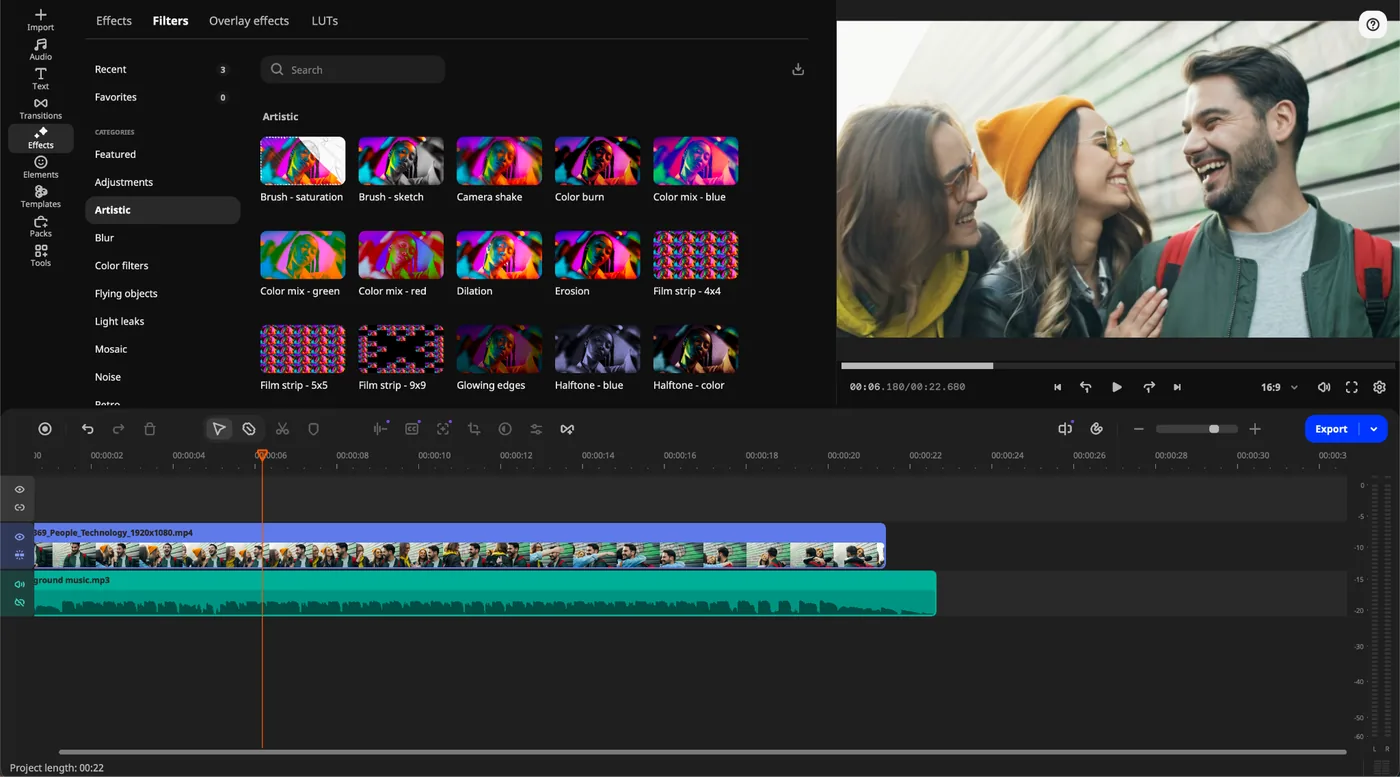
The workspace is made up of four familiar areas: the media library, the preview window, the timeline, and a tool panel on the left. There are no separate workspaces or modes to switch between. If you've never edited before, built-in hints pop up along the way and suggest what to do next.
Most everyday actions take a single move. Drag an effect or preset onto a clip to apply it. Hover over a file, transition, or effect to preview it before using it. Move the cursor along the timeline to see the exact frame underneath. A newer pre-timeline trim lets you pull a short fragment out of a long recording, such as a two-minute moment from an hour-long stream, before it ever lands in your project.
The editing basics are all here: frame-accurate cutting with the Blade tool, cropping and rotation, speed control up to 100x for time-lapses, stabilization, chroma key, animation, and color correction. For color, you can apply a ready-made preset or adjust tones, contrast, and saturation manually.
Movavi Video Templates
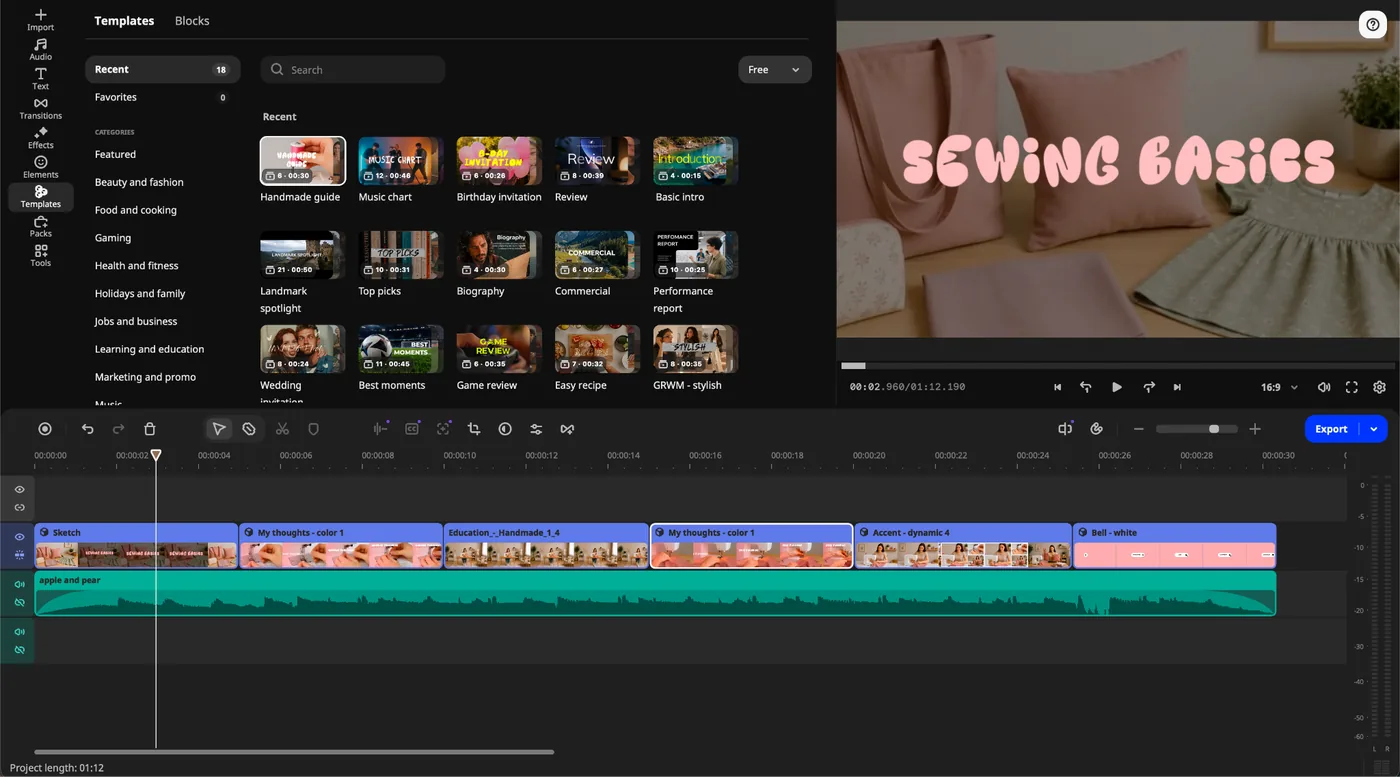
Plenty of editors offer ready-made templates, but they're usually rigid: you swap your clips into the placeholders and live with the rest. Movavi Video Templates are customizable. Each one is made of Blocks, short pre-edited parts such as an intro, a countdown, a series of quick cuts, or an animated collage, with transitions, music, and text already set up.
You can use a template as-is or reshape it: reorder Blocks, delete the ones you don't need, or add new ones. You can also skip templates entirely and assemble a video from individual Blocks. Everything stays on the regular timeline, so you can keep editing by hand afterward.
For beginners, this takes care of the hardest part of editing: pacing and timing. The cuts are already matched to the music, so even a first project can look professionally edited. Templates are sorted into categories such as vlogging, travel, gaming, food and cooking, holidays and family, jobs and business, health and fitness, marketing and promo, and more. They cover everyday projects like YouTube reviews, birthday and wedding videos, slideshows, promo videos, video resumes, and portfolios.
Several templates are included in the full version. The complete library of templates and Blocks is available with a Movavi Templates subscription.
AI tools
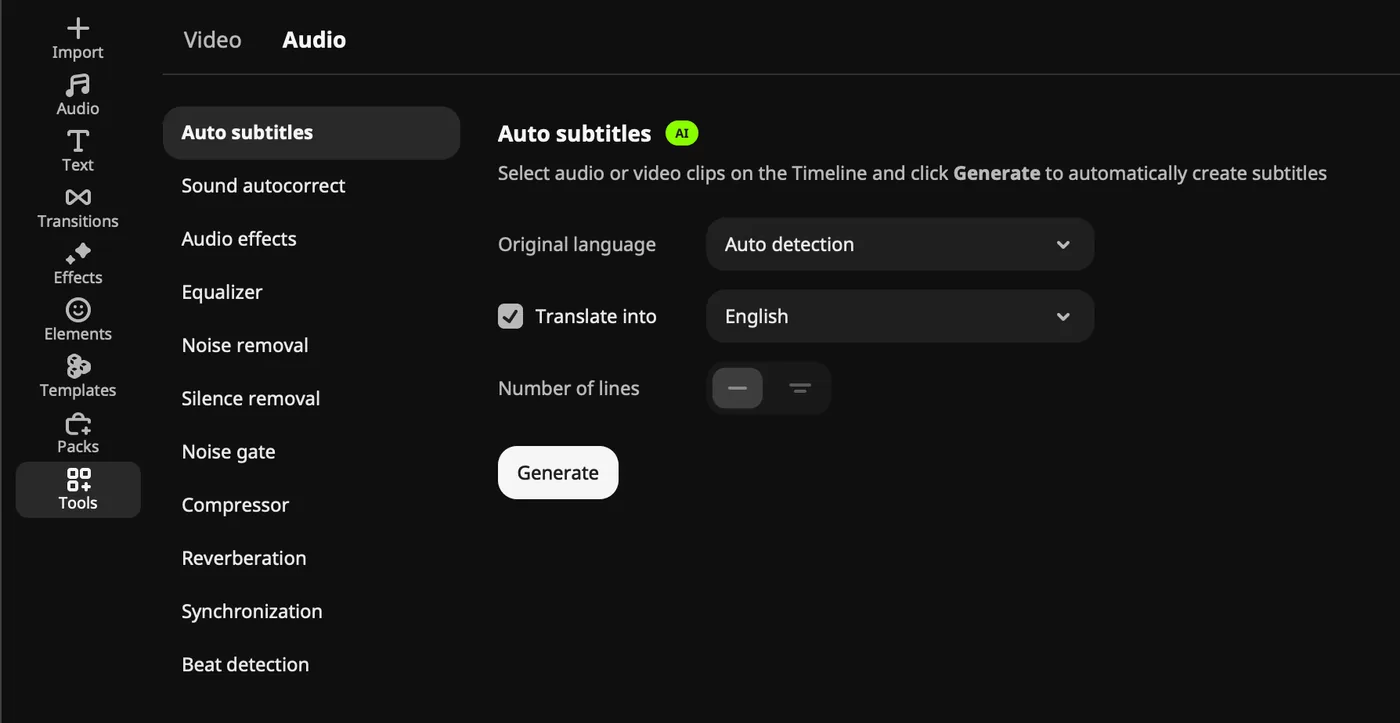
Movavi's AI tools each work in one click and take over routine tasks:
- Auto subtitles: turn speech into captions in more than 100 languages, with 60+ caption styles and active word highlighting that syncs each word to the speaker.
- Video denoise: reduces grain in low-light and older phone footage while keeping faces and edges sharp.
- Audio noise removal: clears out traffic, wind, and steady hums while keeping the voice clear.
- Auto-tracked cropping: follows the main subject when you turn horizontal footage into a vertical format.
- Silence removal: cuts pauses automatically, with adjustable length and volume thresholds.
- Background removal: replace a background without a green screen.
- Motion tracking: attach graphics to a moving object.
There are no AI credits to keep track of. With the full version, you can use the tools as often as you need.
Audio tools
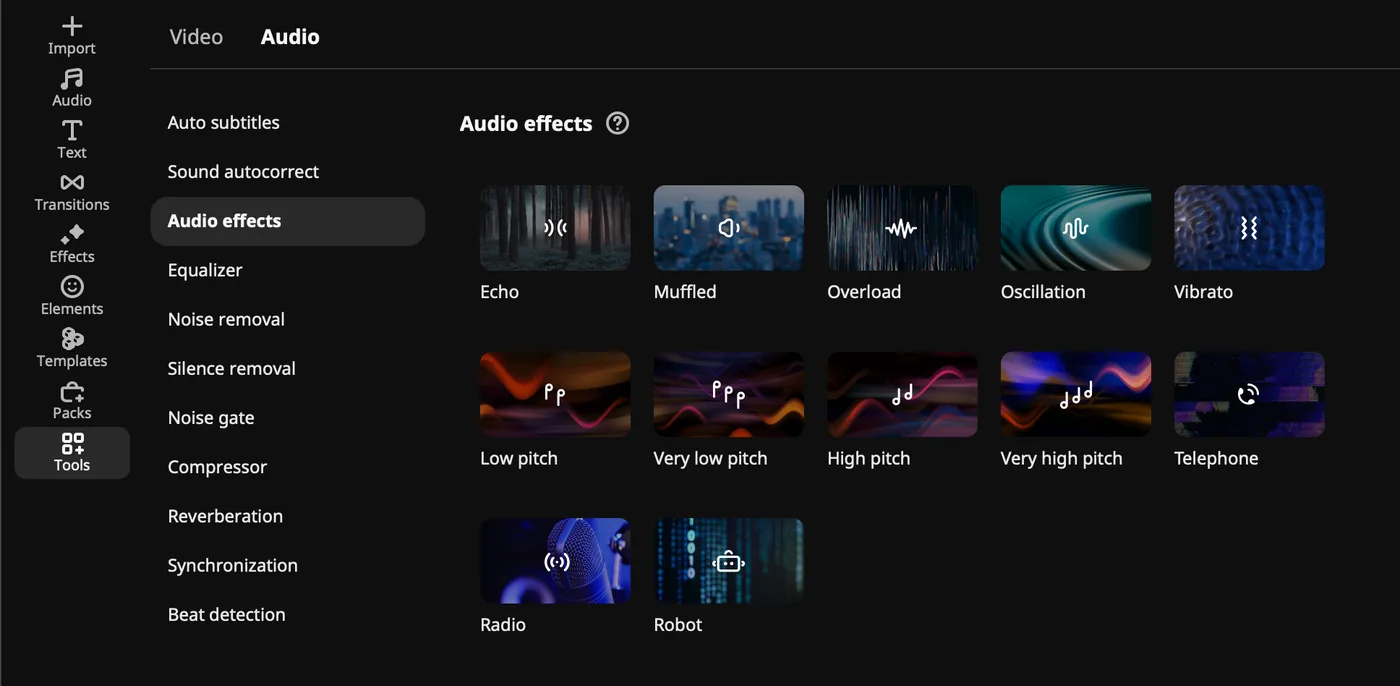
Audio editing goes further than it looks at first. You can record a voiceover straight onto the timeline from a connected microphone, extract the soundtrack from any video, and loop a short music track to match the length of your clip. Volume can be set per clip, normalized to even out loud and quiet parts, or drawn as a multi-point curve for custom rises and drops. Fades and crossfades smooth out the changes between tracks.
For music-driven edits, the beat detector marks beats on the timeline so your cuts can snap to the rhythm. A sync tool lines up audio from two clips on different tracks, which helps when sound was recorded separately from the video. There's also an equalizer with savable presets, a compressor, a noise gate, and reverb. If that sounds too technical, Sound autocorrect offers one-click presets like Enhanced voice recording, Noisy place, and Recording studio. Add a built-in library of copyright-free music and sounds, and most videos won't need a separate audio app.
Effects and extras
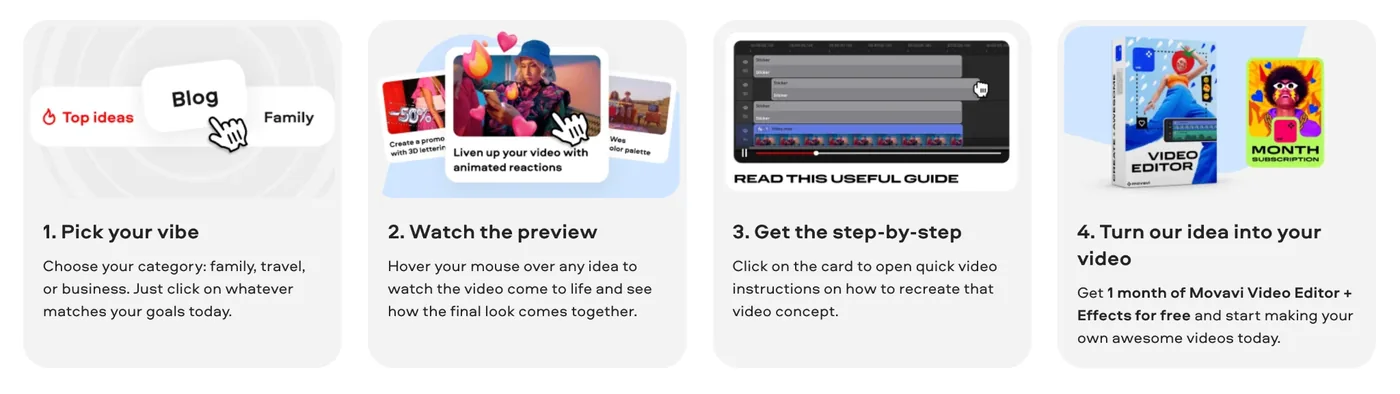
The editor comes with hundreds of built-in, drag-and-drop titles, transitions, filters, stickers, and overlays, and most of them have adjustable settings. If you want more, the Movavi Effects subscription adds over 10,000 effects and 1,500+ music tracks. You can preview any of them on your own video for free, and even save the result with a watermark before buying.
Then there's Movavi Ideas, a free collection of editing tricks made for Movavi Video Editor users. New ideas are added every week, and each comes with a step-by-step tutorial that takes less than a minute to follow. It's a good way to learn techniques like jump cuts, split screens, or stylized intros without reading a manual.
Export
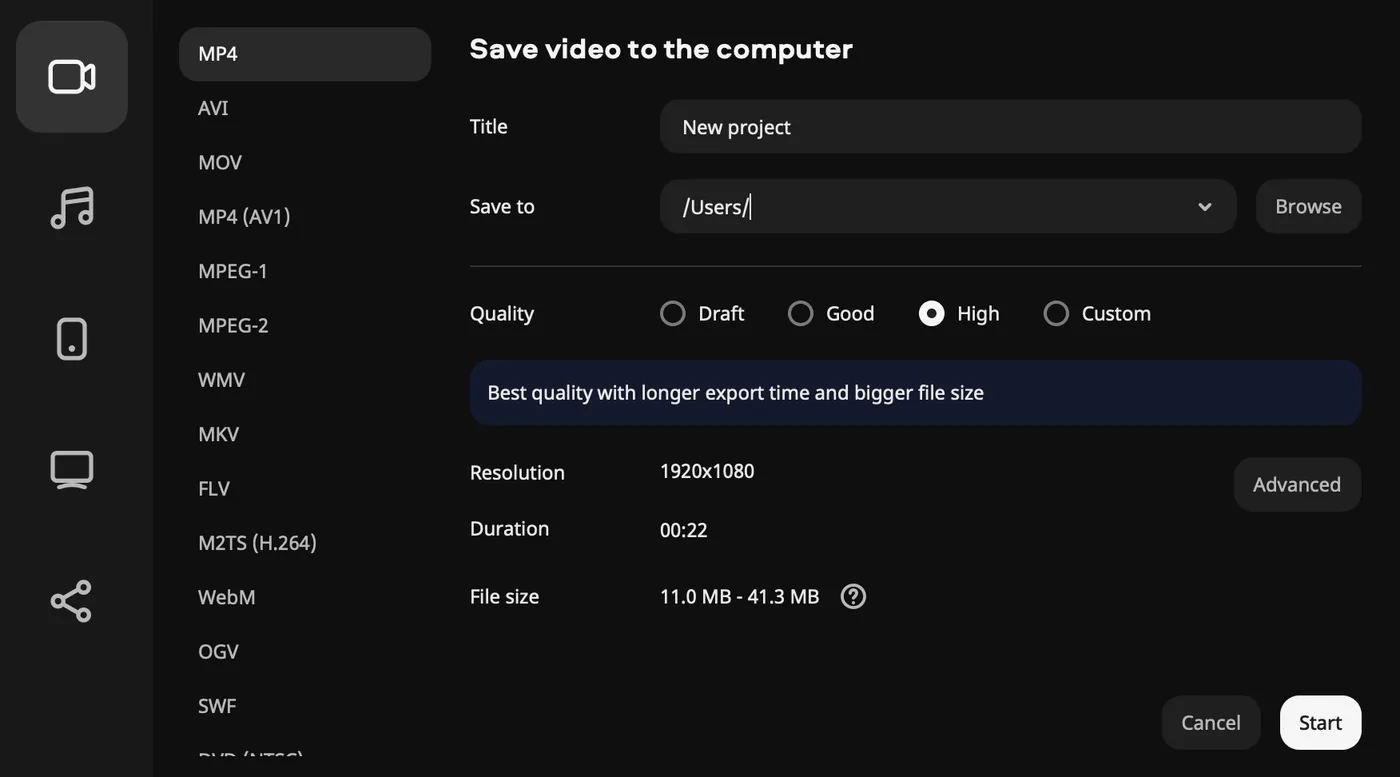
Videos can be saved in MP4, MOV, AVI, MKV, WMV, WebM, and many other formats, with different quality levels and adjustable resolution and aspect ratio. The export window shows the estimated file size before you start. For more control, the H.264 settings include two-pass encoding and presets for content types like film, animation, and slideshows. The audio can also be exported on its own in MP3, WAV, AAC, OGG, WMA, or FLAC.
If you don't want to think about settings, there are ready-made presets for iPhone and Android phones and tablets, PlayStation, and Xbox, as well as TV presets sorted by brand and resolution, up to 4K. You can also upload straight to YouTube, TikTok, Vimeo, or Google Drive, adding a title, description, tags, and privacy settings right in the export window.
Processing
To see how Movavi Video Editor handles a typical project, we prepared 3 MP4 clips of the same length (1:04) in 4K, 1080p, and 720p and applied the same set of edits to each (video denoise, auto contrast, halftone, light leaks, some simple transitions, a couple of titles and stickers, etc.). Every clip was exported to MP4 at High quality and 29.97 fps. Tested on a MacBook Air (M5) with 16 GB of RAM.
| Test | MP4, 4K | MP4, 1080p | MP4, 720p |
|---|---|---|---|
| Resolution | 3840x2160 | 1920x1080 | 1280x720 |
| Length / Size | 01:04 / 205 MB | 01:04 / 95 MB | 01:04 / 42 MB |
| Applied edits | 13 effects, 8 transitions, titles, stickers | 13 effects, 8 transitions, titles, stickers | 13 effects, 8 transitions, titles, stickers |
| Export to | 3840x2160 MP4 | 1920x1080 MP4 | 1280x720 MP4 |
| Export time | 1 min 30 sec | 26 sec | 15 sec |
| Output file size | 302 MB | 134 MB | 84 MB |
The 1080p and 720p clips were exported in well under their own running time: 26 and 15 seconds for a video just over a minute long. Even the 4K clip, with AI denoise running on top of the effects and transitions, took only a minute and a half. The output files are larger than the originals, which is expected at the High quality setting.
Pricing
Movavi offers several plans:
- Free: essential editing tools plus auto subtitles, auto crop, and silence removal. You can try every other tool in the app too. Exports are limited to 60 seconds, carry a watermark, and are saved at lower quality.
- Lite ($11.95/month): core editing tools, auto subtitles, auto crop, silence removal, and all built-in effects, with a small watermark and some advanced tools left out.
- Full version ($19.95/month or $69.95/year): every feature and AI tool, with no watermark or export limits. Several templates and hundreds of effects are included.
- Movavi Video Templates and Movavi Effects: optional subscriptions for the full template and effects libraries.
The setup is flexible: start free, then add only what your projects need.
Conclusion
Movavi Video Editor is a strong choice for anyone starting out in video, and for creators who want good results without spending hours on every edit. Block-based, customizable templates handle structure and pacing, one-click AI tools remove routine work, and Movavi Ideas keeps you learning new tricks every week. Professionals who need deep color grading or complex compositing will still prefer heavier software, but for YouTube videos, social clips, marketing content, tutorials, and family projects, Movavi covers a lot of ground.
Pros:
- Intuitive interface with built-in hints
- Customizable Movavi Video Templates made of Blocks
- One-click AI tools with no credits to track
- Hundreds of built-in effects
- Free weekly tutorials in Movavi Ideas
- Low system requirements on Windows and macOS
- Fast export, even in 4K with AI effects applied
Cons:
- Fewer advanced controls than professional editors
- No UI customization
- No web version or cloud integration